SAYA for Windows
A voice-controlled teleprompter for your Windows PC.
Read your script at your own pace. SAYA follows your speech word by word, with recognition running on your PC.
- Windows 11, build 22000+ · x64 (Intel/AMD)
- 7-day free trial
Your words stay next to your webcam.
Under the Camera, the default style, keeps your script in a small strip near the lens, and spoken words change colour as you talk. To fill the display instead, choose Full Screen in Settings › Prompter.
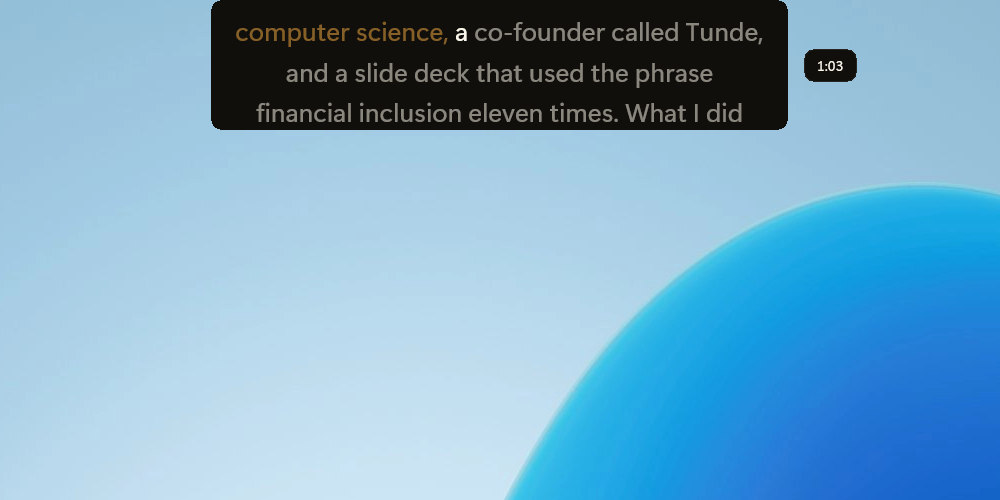
See how it handles a talk.
One recorded demo talk from start to finish, with hard words, asides, slips and pauses. Pick an accent to hear another talk.
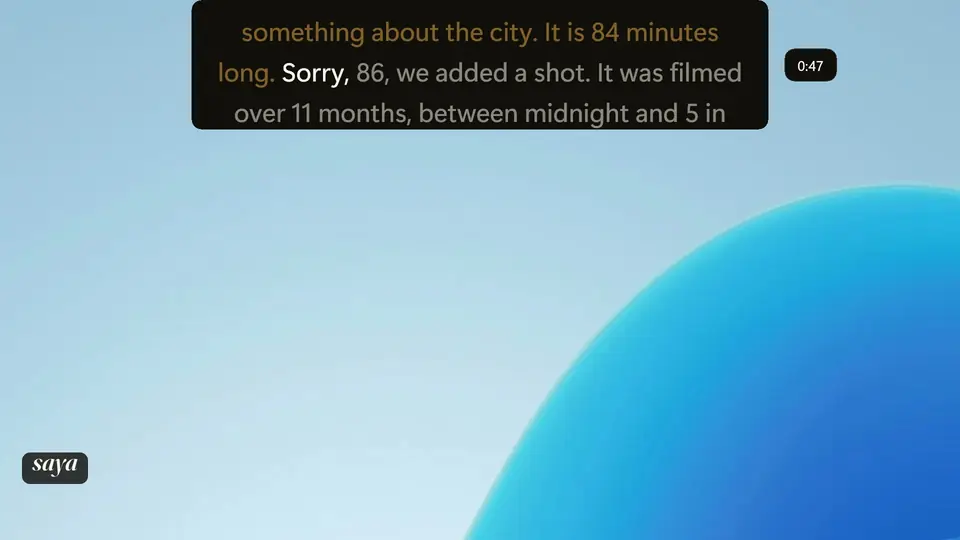
Install it on your PC.
Download and run the installer
Get the installer from the download page, run it and follow the setup steps.
If SmartScreen appears
The installer is not code-signed. After checking that you downloaded it from the SAYA download page, select More info, then Run anyway.
Let setup get the speech model
Setup downloads the speech model. Installation and activation need an internet connection.
Add your talk and start
Write or paste a script, or import a presentation, then allow microphone access and start speaking.
The Windows interface differs from the Mac app. Pictures of the Mac interface elsewhere on this site show the Mac version.
Questions
Why does Windows show a warning?
This installer is not code-signed. If Windows shows “Windows protected your PC”, select More info → Run anyway after checking that you downloaded it from this page.
How do I update SAYA?
For updates, download and run the latest installer from this page.
Do I need to be online?
Voice following works offline after setup. Setup, licence checks and updates need internet. Optional Smart Slides also needs internet and sends text only with your consent.
What is free, and when do I pay?
Writing, editing and manual presentations are free. Pro adds voice following for scripts and slides. Payment starts your subscription immediately. The free trial never turns into a paid subscription automatically.