Voice following without a connection
No internet needed during your talk.
Once SAYA is set up, voice following runs on your computer. A weak venue network does not have to stop your script.
- Mac and Windows
- Speech recognition on your computer
- 7-day free trial
What runs where.
Here is what works without a connection, and what still needs one.
On your computer, no connection needed
- Speech recognition, after setup
- Voice following during your talk
Needs internet
- Installation and setup
- Speech model download
- Activation and licence checks
- Updates
- Smart Slides, only if you choose to use it
Prepare before you lose the connection.
Install and activate while online
Finish setup, including the speech model, on a working connection.
Open your talk once
Make sure your script or slides are ready on the computer you will present from.
Try it with Wi-Fi off
Rehearse a few minutes with your connection turned off, so you know what to expect before the day.
A video call still needs its own internet connection. Only SAYA's voice following runs locally.
Questions
Does my audio leave my computer?
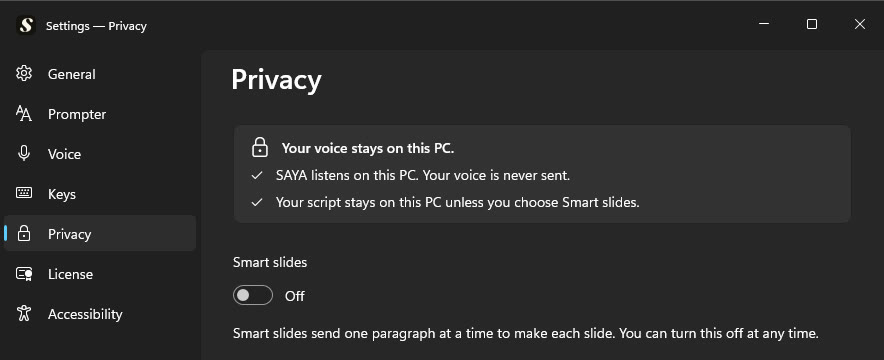
Voice following runs locally on Mac and Windows, and your audio stays on your computer. Audio recording is off by default.
Is SAYA ever online?
Yes. Setup, activation, licence checks and updates use the internet. SAYA checks your licence online from time to time when a connection is available.
What does Smart Slides send?
Smart Slides is optional. It needs internet and sends text only with your consent.
Can I start with no connection at all?
Complete setup and activation while you are online first. Windows setup also downloads the speech model.